Last verified October 9, 2026 for the two-computer USB handoff and built-in monitor-KVM source review; September 9, 2026 for the remaining source set · Published September 9, 2026
KVM vs USB Switch: Which Do You Actually Need?
If you only want to share a keyboard, mouse, or a few USB devices between two computers, you probably do not need a KVM. A USB sharing switch is the smaller device because it switches USB peripherals and leaves your monitor connections alone.
Choose a KVM when the monitor itself also needs to switch between computers and you want video and USB to change together.
That distinction matters more than the product name:
USB only → USB switch.
Video + USB together → KVM.
High-refresh gaming PC + occasional work laptop → direct monitor inputs + USB switch is often worth checking first.
Frequent switching + verified display requirements → an exact KVM may be more convenient.
Not implied; only exact USB-C/KVM models may provide it
Best fit
Peripheral-only sharing
Coordinated console switching
What a USB switch actually does
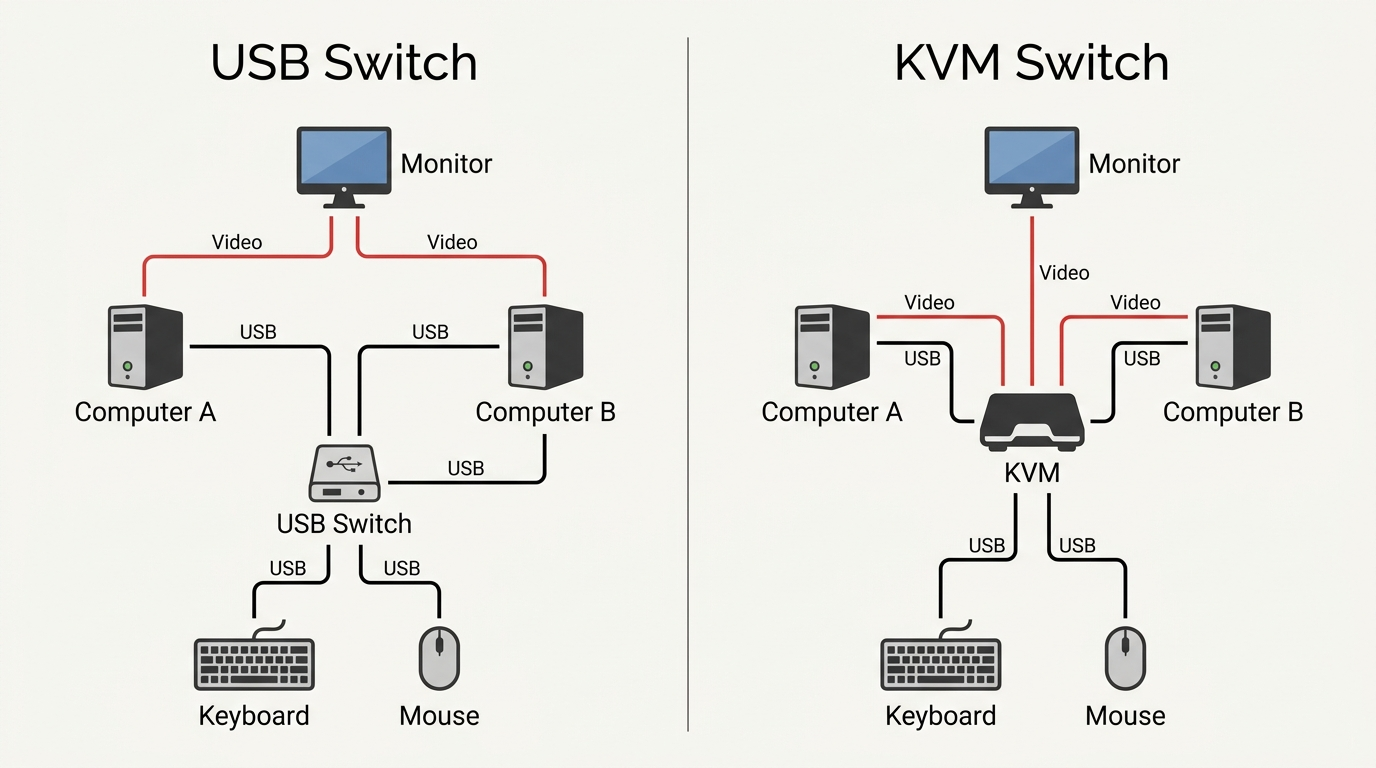
A two-computer USB sharing switch looks like this:
Keyboard ─┐
Mouse ────┼─> USB switch ──> Computer A
Webcam ───┤              └─> Computer B
Other USB ┘
Press the switch and the selected computer takes ownership of those USB devices.
The monitor is not part of that path.
Current UGREEN documentation is unusually explicit about this category boundary: its USB switches are not KVM switches and do not carry monitor or video signals. SABRENT’s USB-SW30 is another straightforward example, sharing USB devices between two computers through a push button with USB 3.0 data rates up to 5Gbps.
SABRENT USB-SW30 is one exact example of this peripheral-only category. It can share USB devices between two computers while monitor video remains on separate direct connections.
Disclosure: SetupMeld may earn a commission if you purchase through links on this page, at no additional cost to you. Product inclusion is based on compatibility with the setup described, not commission rates.
you are comfortable changing monitor input separately;
you want to preserve an existing direct display connection;
you simply do not have a video-switching problem.
A USB switch does not automatically share everything USB-shaped
Do not treat “USB device” as one universal workload.
A basic keyboard and mouse place very different demands on the USB path than an external SSD, capture device, high-resolution webcam, or a full docking station. Check the exact switch’s USB version, power arrangement, and device guidance.
Wireless receivers also deserve exact-product checking. Some switches and host layouts can expose power or 2.4GHz interference issues. If a receiver behaves badly, do not assume every wireless keyboard or mouse will behave the same way.
Using a USB switch with two computers: check the handoff before you buy
A USB switch is a good fit only when your display path is already decided. It is not enough that both computers have USB ports: each computer still needs its own working route to the monitor, while the switch moves only the peripherals.
Computer A ── video ──> monitor input 1
Computer B ── video ──> monitor input 2

Keyboard + mouse ──> USB switch ──> Computer A or Computer B
For the common one-monitor, two-computer desk, plan on two separate decisions: select the monitor input for the picture, then select the USB-switch host for the keyboard and mouse. UGREEN documents that its two-computer USB switch is data-only and does not transmit monitor video; SABRENT documents button switching between two computers for its USB-SW30, while noting that a connected peripheral can still need its own driver on each computer.
Test
What a pass looks like
What it rules out
Video first
Each computer shows a picture on its own monitor input before the USB switch is involved.
Misdiagnosing a missing video connection as a USB-switch fault.
Peripheral first
With only a wired keyboard and mouse attached, the selected host can type and move the pointer after each handoff.
Adding cameras, storage, and receivers before the basic path works.
One device class at a time
Add a webcam, audio adapter, receiver, or storage device individually and verify it on both hosts.
Assuming one successful keyboard handoff proves every USB device is suitable.
Storage safety
No storage device is actively reading or writing before a handoff.
Switching an active storage path as if it were a keyboard.
This is a compatibility check, not a claim that every switch will behave identically. Dell’s two-computer monitor guidance illustrates why the paths must be explicit: on a compatible built-in-KVM monitor, each computer needs its own video connection and USB upstream path before the monitor can assign its downstream keyboard and mouse. Dell’s monitor documentation also warns not to change an upstream USB source while storage attached to that path is in use.
Use a monitor’s own KVM only when the monitor documents it
If your monitor has a documented KVM feature, it can be a third architecture: connect both computers for video, connect the required USB upstream paths, and plug the shared keyboard and mouse into the monitor’s downstream ports. That is different from merely having two video inputs. Check the exact monitor manual for its upstream ports, input-to-USB assignment, and any KVM or auto-switch setting; otherwise, use the monitor for video selection and a separate USB switch for peripherals.
If the selected computer sees the picture but not the keyboard or mouse, do not start by replacing the monitor or the KVM. First verify the USB upstream connection for that host, then test only a basic wired keyboard and mouse, and only then add higher-demand or driver-dependent peripherals. That sequence isolates video, USB ownership, and the individual device without claiming a universal fix.
What a KVM actually does
KVM stands for keyboard, video, and mouse.
A typical single-monitor KVM looks like this:
Computer A video + USB ──┐
                         ├─> KVM ──> monitor
Computer B video + USB ──┘          keyboard
                                    mouse
The KVM sits in the video path as well as the USB path. One switching action can move the visible monitor and the input devices to the other computer.
That can be much more convenient when you switch frequently.
But the KVM now has more technical jobs to satisfy. Verify:
computer count;
monitor count;
HDMI, DisplayPort, or USB-C interfaces;
target resolution and refresh rate;
color depth and HDR if important;
variable refresh rate / G-Sync / FreeSync behavior when required;
EDID emulation or display reconnect behavior;
USB speed and peripheral compatibility;
switching method;
cable requirements;
laptop charging only when the exact product documents it.
A KVM cannot create a display signal that the computer cannot provide. It can only switch the compatible signals that reach its inputs.
Gaming PC + work laptop: a bounded example
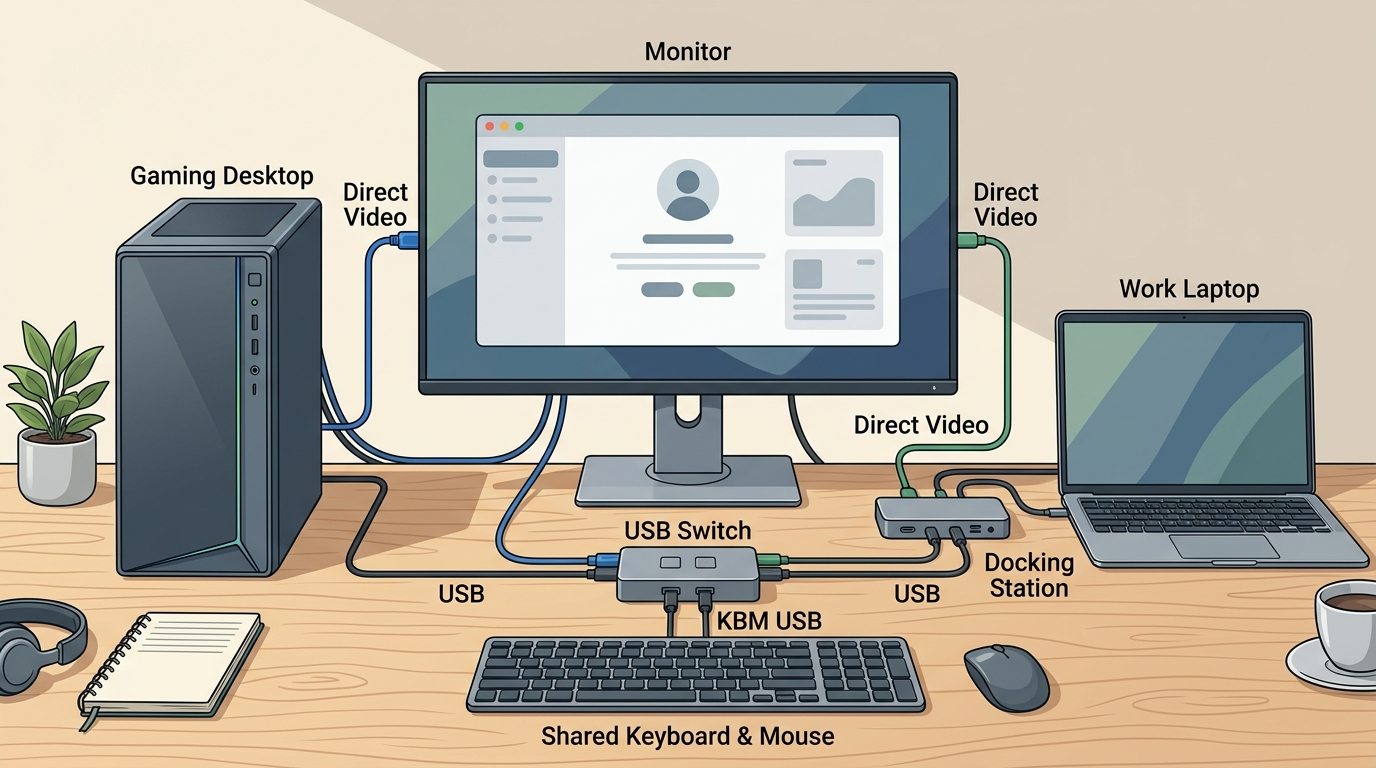
Suppose a gaming desktop and a work laptop share one monitor, keyboard, and mouse. If the monitor already has two suitable inputs, a low-assumption layout is to keep the gaming GPU connected directly to one monitor input, connect the work laptop or its dock to the other, and use a USB switch for the peripherals.
That keeps the video path outside the USB switch and avoids making the peripheral-sharing device responsible for refresh rate, HDR, VRR, or other display features.
This does not mean a KVM is unsuitable for gaming. Current exact KVMs exist with documented high-refresh modes. If one-button video + USB switching matters, verify an exact KVM for the required resolution, refresh rate, HDR/VRR behavior, interfaces, and cables.
The category rule stays the same: use direct monitor inputs + USB switching when separate video selection is acceptable; use a verified KVM when coordinated switching is worth the extra compatibility checks.
If this is your exact desk — gaming desktop plus employer/work laptop — use the dedicated Gaming PC + Work Laptop guide for the full one-monitor, two-monitor, high-refresh, dock, and work-policy decision tree.
When a KVM is clearly the better tool
A KVM makes more sense when the real inconvenience is that you have to switch several things every time you change computers.
For example:
Change monitor input.
Change USB switch.
Change second monitor input.
Recover window positions if the monitor disconnected.
If you do that many times per day, one-button coordinated switching can be worth the extra verification work.
A KVM is also the direct category match when:
the monitor has only one usable input for your setup;
the physical input buttons are awkward;
multiple monitors need to change hosts together;
you want USB and video ownership linked;
EDID emulation or persistent display state is important and the exact KVM documents it.
When a USB switch is clearly the better tool
Choose a USB switch when the monitors are already solved.
Common cases:
Two computers, separate monitors
You see both computers at once and only want one keyboard and mouse.
A KVM’s video function would be unused.
One monitor with two inputs
Each computer can remain connected to the monitor. The monitor already performs the video selection. A USB switch fills only the missing peripheral-selection function.
Gaming PC where you want the least complicated video chain
Keeping the GPU directly connected to the gaming monitor avoids adding a video intermediary solely for peripheral sharing.
You switch infrequently
If you switch once after work, pressing the monitor input button and USB-switch button may be simpler than buying and wiring a KVM.
What about a work laptop that blocks software?
Both conventional USB switches and many conventional KVMs can perform their basic switching in hardware without a software KVM application.
That can be useful with employer-managed computers, but do not turn it into a guarantee.
Microsoft documents that administrators can control installation of hardware devices on managed Windows systems by device identity or class. A company may also restrict drivers, USB storage, display software, docking utilities, or other peripherals.
So the correct rule is:
do not install unapproved software;
do not bypass device controls;
use the simplest hardware the organization permits;
ask IT when the setup depends on a driver, unusual USB device, or security-sensitive peripheral.
A plain keyboard/mouse path is a simpler requirement than asking a managed work laptop to accept a new driver-based display system.
Do you need a dock too?
A USB switch and a KVM answer sharing questions. A docking station answers a different question: how one laptop gets more ports, displays, network, and possibly charging.
You may need both categories in one desk.
For example:
Work laptop ──> dock ──> monitor/KVM path
Gaming desktop ─────────> monitor/KVM path
Do not choose a KVM dock automatically just because one computer is a laptop. If the laptop’s existing dock already works, keep it unless there is a real reason to consolidate.
Can the monitor’s own inputs handle video switching comfortably?
Yes → USB switch + monitor inputs is a strong option.
No → evaluate a KVM.
Do you need video and USB to change together many times each day?
Yes → KVM.
No → separate monitor input + USB switching may still be enough.
Is gaming/high refresh involved?
Yes → either keep video direct or verify the exact KVM’s complete mode support.
Does a laptop also need ports/charging?
Yes → keep its existing dock or evaluate dock/KVM architecture separately.
Bottom line
A USB switch and a KVM are not cheaper and more expensive versions of the same thing. They solve different-sized problems.
Choose a USB switch when you only need to move keyboard, mouse, and other compatible USB peripherals between computers. Keep the monitor video on its existing direct connections.
Choose a KVM when you want the monitor video and USB peripherals to switch together.
For a gaming PC plus work laptop, direct monitor inputs + USB switch deserves consideration when you want to preserve a demanding gaming video path without adding another video device. But do not turn that into a blanket anti-KVM rule: modern exact KVMs can support high refresh rates when their documented interfaces and modes match the entire setup.
Buy the smallest switching layer that solves the problem you actually have.
Sources & Verification
Last checked: 2026-10-09
SABRENT — USB-SW30 USB 3.0 Sharing Switch https://sabrent.com/products/usb-sw30
Verifies two-computer USB sharing, button switching, plug-and-play operation, and up to 5Gbps for the exact device.
AV Access — 8KSW21-KVM https://www.avaccess.com/products/8ksw21-kvm/
Exact manufacturer example documenting HDMI 2.1, 1440p 144/165Hz and higher modes, USB sharing, and listed VRR-related features.
No hands-on testing is claimed. Exact interfaces, cables, monitor modes, USB devices, employer policy, firmware, and product revisions remain part of the compatibility check.